 Offline Columns
Offline Columns
Offline Columns
You can add and modify columns in Offline documents. A column can be a data column, offline-only (text) column, or a formula column.
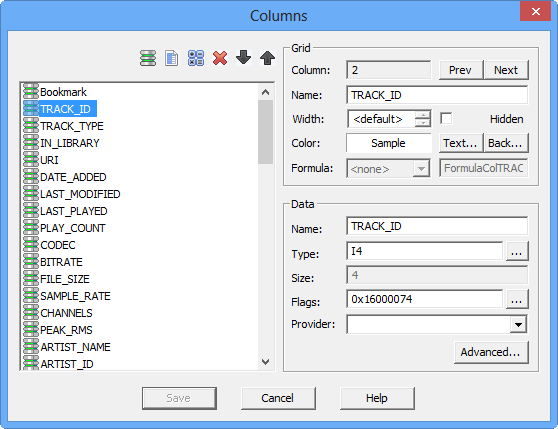
COLUMNS DIALOG BOX
To display the Columns dialog box, click Columns in the OL tab. You can also click the ellipsis (...) in the Offline document.
The column list (on the left side of the dialog box) supports drag and drop, copy and paste, and a right-click context menu. You can copy and paste to the column list of a different Offline document.
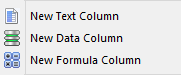
To convert a text or formula column to a data column, specify a data Type (for example: I4) in the Data Type dialog box.
To display the Data Type dialog box click the
 ellipsis (...) next to Type.
To convert a data column to a text column specify <None> for the data type.
You can press and hold SHIFT and click OK to in the Data Type dialog box to assign all matching data types (for example: to convert all text columns to WSTR, which makes them data columns).
A data column that has a data type specified (for example: TRACK_ID is I4 as shown above) can link to a data file or server.
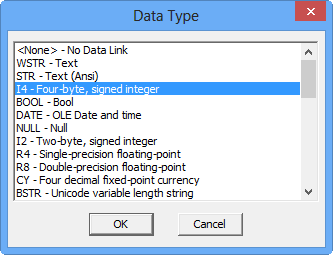
DATA TYPE DIALOG BOX
A data column can be formatted in the Offline document (for example: BOOL displays a check box, DATE displays calendar control).
 To make a column behave as a data column in the Offline document but without linking the column to the data file or server, click Unlink in the Advanced Column dialog box.
If you create a table, the SQL column type must be specified for that provider. An SQL column type can be provided automatically, or you can specify the SQL column type in the Columns dialog box.
If provided automatically, the SQL column type is chosen based on the data type, size, and flags.
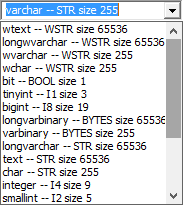
The default data type is a unicode string (WSTR) with a maximum length of 50 characters. For Oracle the default SQL column type is NVARCHAR(50).
The provider list in the Column dialog box displays all supported SQL column types and identifies the data type, size, and flags. You can also SQL column types after initializing a data file or server. In the Data tab, under Admin, click DBMS Data Types.
Column type flags specify column properties such as fixed length, long types, and identity.
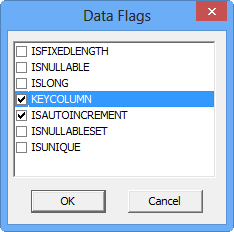
DATA FLAGS DIALOG BOX
You do not need to set data flags unless you are creating a table or adding a column. If you specify an I4 data type with KEYCOLUMN and ISAUTOINCREMENT data flags you create an identity column. If necessary, a sequence is also created.
 Press and hold SHIFT when loading the Data Flags dialog box to display hidden flags.
Hidden flags are status flags that are retained when data is read from a data file or server.
Hidden flags in the Offline document are ignored except in a specific situation where you write SQL script and the table does not (yet) exist:
If ISNULLABLESET is set and both the WRITE and WRITEUNKNNOWN flags are clear, the column is assumed to be read-only and no data is written for the column.
This sutuaton can occur if you convert a select query to a table and then write SQL script. The query produces read-only columns which causes DEFAULT VALUES to be appended, rather than values.
You can set the WRITE flag to avoid this problem.
Press and hold SHIFT when loading the Data Flags dialog box to display hidden flags.
Hidden flags are status flags that are retained when data is read from a data file or server.
Hidden flags in the Offline document are ignored except in a specific situation where you write SQL script and the table does not (yet) exist:
If ISNULLABLESET is set and both the WRITE and WRITEUNKNNOWN flags are clear, the column is assumed to be read-only and no data is written for the column.
This sutuaton can occur if you convert a select query to a table and then write SQL script. The query produces read-only columns which causes DEFAULT VALUES to be appended, rather than values.
You can set the WRITE flag to avoid this problem.
| ISLONG | Can be very large. Memo, Long Binary, image, ntext. |
| ISFIXED | Identifies a fixed width column (char in MsSql). |
| ISAUTOINCREMENT | Value generated by the database (frequently a primary key). |
| ISUNIQUE | Value must be unique (if not supported by index). |
| ISNULLABLE | Can be set NULL. |
| ISNULLABLESET | Indicates ISNULLABLE is valid. Default otherwise. |
| KEYCOLUMN | Primary Key column (if not indicated by an index). |
Setting the KEYCOLUMN flag creates a PRIMARY KEY. Setting the ISUNIQUE flag creates a unique constraint. Implementaton and support varies for each DBMS.
