
Tutorials for working with text data.
In the Data tab, click File > Markup (html, xml) and open http://www.rogerfrost.com/datafile/periodic.csv (Periodic table data from www.rogerfrost.com).
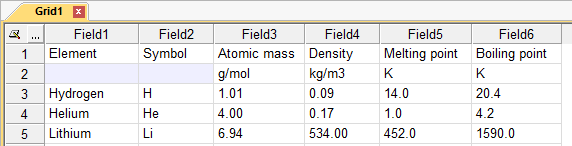
Notice that the first line are the labels.
Click Modify in the Data tab to display the Data Link dialog box.
In the Fields list, click Pick File/Open Data with Properties. Enter http://www.rogerfrost.com/datafile/periodic.csv again. Choose Delimited with header (Quoted) from the Fields: list. [OK] to close the dialog.
Complete.
(continued from the previous section)
Pick File/Data Link change the file name to C:\data\periodic.csv. Pick [OK] to close the dialog. Note that the file does not yet exist. Pick File/Write Data. Use notepad to view the file.
Complete.
(continued from the previous section)
Pick File/Data Link pick Unicode and check Byte Order Mark. Pick [OK] to close the dialog. Pick File/Write Data.
Complete.
From the File tab in the Data window expand data connectors.

Figure Desktop-1 Agent File Types
Right-Click Text (*.txt) (Desktop) to open the context menu and pick Open with Properties and enter C:\Data\Offline.txt, a filename which does not yet exist. Pick [Open] to close the file dialog. From the File Properties - flask.txt dialog check Line Number. Pick [OK].
Pick Grid/Row/Append. Repeat two more times to get a total of three rows. Into the first row in the Text column enter Speak. Into the second enter See. Enter Hear into the third.
Note about cell edit mode: While editing a cell, some commands are disabled. Press Enter or Esc to exit cell edit mode.

Pick File/Write Data. Notice that the Line numbers are now assigned. Use Notepad to check the contents of C:\Data\Offline.txt.

Type 3 into column Line of the first row, and 1 into the third row.

Pick File/Write Data. Use Notepad to check the contents of C:\Data\Offline.txt. Pick File/Reload Data/Reload All.
Complete.
(continued from the previous section).

Exploration. Pick Grid/Column/Properties. Pick Line from the list and press [Advanced]. Notice the ordinal is <None>. Press the Flags [...] button. Notice that KEYCOLUMN is set. Cancel out of all three dialogs.
Pick Edit/Properties and set the number of Rows from 3 to 1. Press [OK].

Change 1 to 2 in the Line column. Pick File/Reload Data/Reload Update. The Text column is updated using the Line key of 2.

Pick Edit/Properties. Change the number of Columns from 2 to 3. Press [OK].

Pick Grid/Column/Properties. Notice that the new column C has a data type of <None>. Cancel out of the dialog. Pick File/Reload Data/Reload Rows.
Type Evil into cell 3,3 (third row column C). Pick File/Reload Data/Reload . Notice that column C remains.

Pick File/Reload Data/Reload All. Notice that column C is gone.
Complete.
Note about keyed updates: SQL Offline supports keyed updating not only when writing to external databases, but also when reading from them. It also supports updating between grid documents. A goal of SQL Offline is to support basic database functionality, using type and key information, even where the external data does not support them. This is done by retaining disconnected metadata in the dfg file. In the case of flat text, you can use a line number as a key. The variety of Reloads Data commands allow you to choose how much of the data to import, and whether to use a key. The Reload Update will only update where keys (line numbers from flat text) match. A standard Reload will bring in all data, but leave non-data columns in-place. A Reload All first clears the .OL grid before using the Data Link information to reload.
Pick File/New Grid. Enter 10 into both row and column. Press [OK] to close the dialog. Pick Grid/Select/All.
Pick Grid/Formula/Global . Replace "Value" with nCol * nRow. Press [OK].

Pick Edit/Properties/Agent and pick Desktop - Windows Desktop. Read the note in the dialog stating that the agent will change with the next file open. Press [OK] and [OK] to exit out of both dialogs. Pick File/Save to save C:\Data\Multiple.OL. Pick File/Close to close the file.
Load C:\Data\Multiple.OL. Select the Results tab of the History window and notice that (<No Agent> has been changed to CiExtraAgentDesktop).
Pick Script/Activate if formula's are not set to Activate Automatically.
Pick Grid/Column/Properties. Select column A. Pick [...]/STR - Text and press [OK]. Notice that column A is now listed as a data column. Set the Data Size to 8.
Exploration: Type Alt-xfew times. Type Alt-v few times. These are the mnemonic for the [Next] and [Prev] button that allow you to change columns in without changing focus in the dialog.
Repeat for columns B to J, setting column type STR - Text and a length 8; To spice up your afternoon, enjoy selecting random numbers between 2 and 10, rather than always 8. [OK]to close the dialog.
Pick File/Data Link and enter C:\Data\Multiple.OL

Check Fields. Choose Aligned with header. Press [OK]. Pick File/Data Link again and notice that the column field sizes now appear in the link. Cancel to close.
Pick File/Write Data. Use Notepad to check the contents of C:\Data\Multiple.txt.
Complete.
From the File tab in the Data window expand data connectors.
Right-Click Text (*.txt) (Desktop) to open the context menu and pick Open with Properties. Enter C:\Data\Peace.txt.
Check Binary. Check Unicode. Check Byte Order Mark. Check Offset. Pick [OK].

Pick Grid/Row/Append . Repeat two more times to get a total of three rows.
Use the mouse to drag-select the following three lines from this help file into the clipboard (Select Peace to 05DD], Right-Click, Copy ):
|
Peace |
In the new Grid, click in cell 1,1 (first row of the Text column) to make it current. Pick Edit/Paste. Pick Grid/Column/Auto Resize.

Enter 10, 32 and 54 into the Offset column. Pick File/Write Data . Use Notepad to check the contents of C:\Data\Peace.txt. Choose a Font, such as Times New Roman that supports Unicode.

Complete. Additional tutorials.
