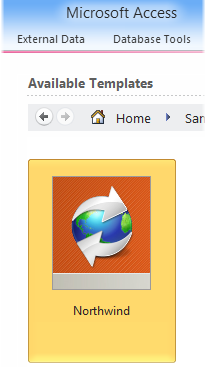
Run Access and click File ► New ► Sample templates ► Northwind ► Create. Exit Access.
You can also download a sample MDB data file here: nwind.zip.
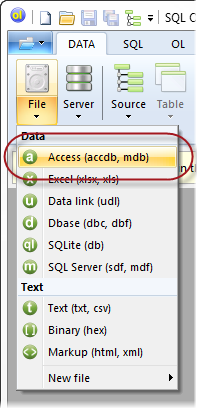
Run SQL Offline. In the Data tab, click File ► Access.
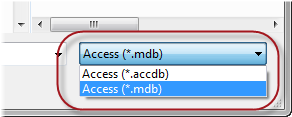
Specify the file type. In the file type list click either Access (*.accdb) or Access (*.mdb).
Locate Northwind.accdb or Nwind.mdb and click Open. The Source window opens and displays table names in the data file.
In the Source window, click the Customers table. In the Data tab, click
 Table ► Open.
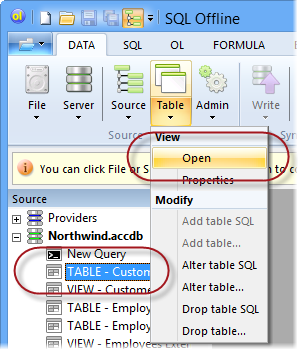
Your new Offline document is created that contains data from the table. Some characters are UTF8 encoded.
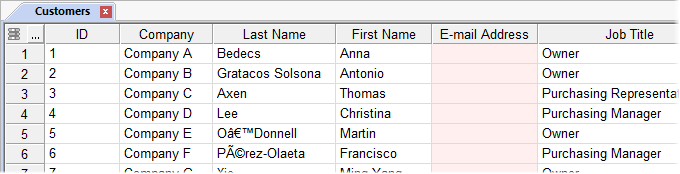
Click File ► Save to create your OL file Customers.ol.
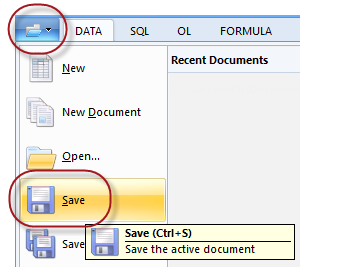
In the Data tab, click
 Source ► Close All.
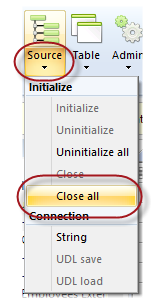
All connections to the data files (or servers) are closed.
In the Offline document, modify the company name in row 1. For example, change Company A to Interscape.
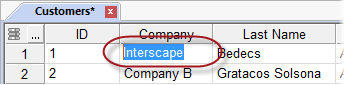
Click another cell or press Esc to stop editing a cell.
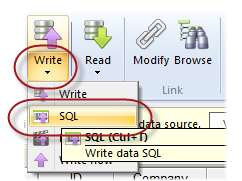
Click
 Write > SQL. A new Offline SQL Script document displays.
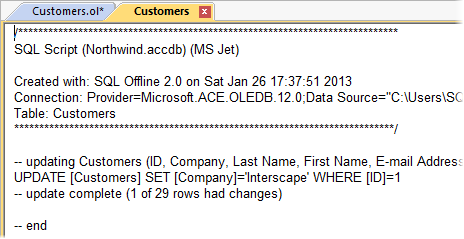
Press F5 to Run the SQL script. The Table in the data file is now updated.
Click
 to
Close the SQL script file.
to
Close the SQL script file.
In the Edit tab, click Undo to restore the original company name. If Undo is not available, you can close and re-open the OL file.
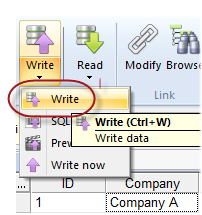
In the Data tab, click
Write ► Write.
In the Confirm Write dialog box, click Yes.
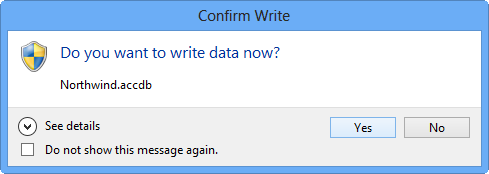
The table in the data file is now restored. Click Write ► Preview to confirm that the Offline document matches the data file. Click OK.
In the Data tab, click Browse. In the Source window click the data file name (for example: Northwind.accdb).
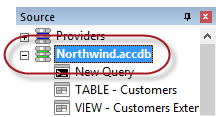
In the Data tab, click Source ► String. The connection string for the data file displays.
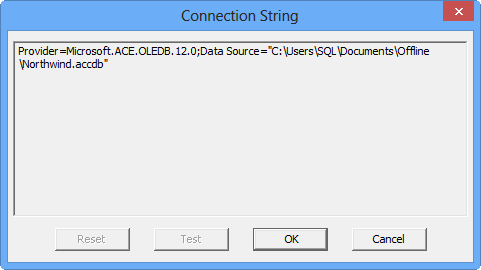
In the Connection String dialog box, click Cancel. In the Data tab, click Source ► Close All.
In the Data tab, click Modify. The Offline document link displays.
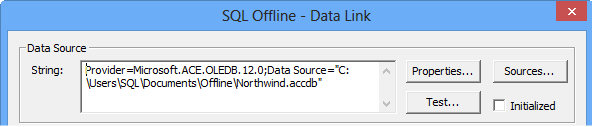
Note the connection strings in the Offline document and the Source window match. Click Cancel.
In the Data tab, click Modify. In the Data Link dialog box, change the table name from Customers to Customers_new.

In the Index Name list, click Attachments. Click Delete Index. Click Save.
In the Data tab, click
Write ► Write.
