Flask Grid .dfg files can be be created from SELECT queries. Data Modification Language SQL commands are used to create and modify tables. Update script can be produced from data in a grid.
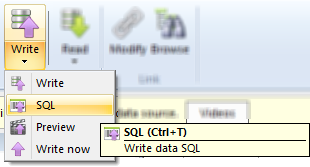
Data Flask supports .sql text. The SQL script can be run after being connected to a data source. Write Data Preview (SQL) can be used rather than Write Data in cases where you would prefer to use SQL script rather than the client cursor.
Table CREATE and ALTER script can be created using the context menu of an initialized data source in the Data window.

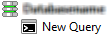
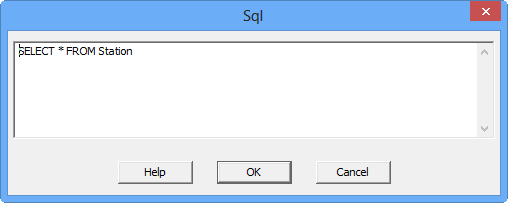
Data Flask supports Select queries. Checking [x] Sql in the OleDb Data Link Dialog (figure OleDb-4) will indicate that the value entered for Table: is an Sql statement, rather than a table name. A new grid may be created using a query using the New Query selection that becomes available when a data source is initialized.
For example, entering
SELECT * FROM Customers
with New Query after initializing Access (OleDb) with Nwind.mdb would result in opening all columns in the Customers table.
General Reference link: Zoo (external)

Data Flask can automatically produce Data Definition Language (DDL) SQL for creating tables, keys and indexes. However Admin commands that are more provider specific, such as commands that involve Database management, will need to be entered manually. You can use Admin/Sql Execute from the Data window, or create a new .SQL file.
For example you can enter
DROP DATABASE FLASK
would drop database from providers that support catalogs.
Sql Admin statements require an initialized database to run in. A connection string can be loaded from a Udl file using the Providers item in the OleDb window. Once initialized, the data source is displayed in bold, and the Sql Execute menu choice becomes available.

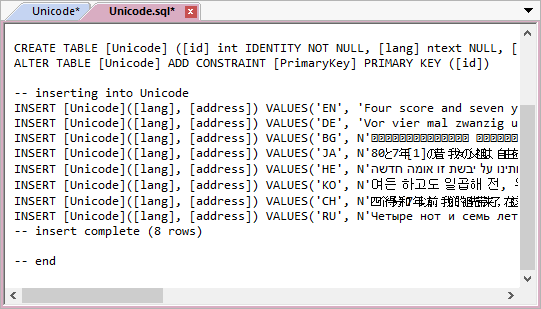
SQL script can be created by selecting Write Data Preview (SQL) with a grid loaded. No modification to the data is made when producing the preview script, however the script is setup such that it can be initialized and executed by picking SQL/Run from the menu
The script will include commands to CREATE or ALTER tables, columns, keys and indexes. Data in the grid will be compared to existing data in the table or query to calculate UPDATES, INSERTS and optionally DELETES. Syntax will adjust based on the provider.
Sample SQL Script: ProductsMsSql.sql.txt.

The .SQL text is formatted such that each line can be executed one line at a time, each as an atomic operation. The head comment is formatted so that the Connection: string will be initialized if a connection has not already been made for the SQL text. Run Bulk will Execute the entire script at once, rather than one line at a time. Run Bulk will not work for all providers.
Data modification commands such as CREATE TABLE, ALTER TABLE and CREATE INDEX are the same ones that would be with Write Data. The Data Modification (DML) portion of the SQL, which includes the INSERTS, UPDATES and DELETES are intended to produce the same results, however Write Data uses a client cursor rather than executing DML.
The client cursor will allow bookmarks and record numbers (natural order) to be used if selected from the Data Link dialog. SQL Preview will generate RECNO when a cursor or row number is used for UPDATE. In cases where the row number cannot be keyed, which is the usual case, the SQL will error when run.
Control text, such as newlines, tabs and carriage returns will be converted to functions such as CHAR(13) + CHAR(10). The character function (char) and concatenation (+) operator are provider dependent.
Depending on the provider, Table and Column Identifiers will be bracketed or quoted. If they were not, spaces and keywords could cause problems. If you would like to disable quoting identifiers, change one or both of SqlTableIdBracket and SqlColumnIdBracket to zero (0) in HKEY_CURRENT_USER\Software\Interscape\Flask\1.0\Settings.

DDL Script menu pick.
Data Flask will Execute Data Definition Language (DDL) SQL commands to perform create and modify tables. Script can also be created by selecting Add Script, Edit Script or Drop Script from the Admin context menu from an initialized data source in the OleDb tab of Data Window.

CreateTable.sql DDL Script
When a normal Write Data command is issued, a recording of the DDL executed can be seen in the Results tab of the History window. Data Flask will prefer DDL over OleDb interfaces. If you wish to use OleDb native admin interfaces, set PreferOledbInterfaces to one (1) in HKEY_CURRENT_USER\Software\Interscape\Flask\1.0\Settings.
Data
Flask Copyright © 2006 Interscape
Corporation