 Offline Document
Offline Document
Offline Document
Offline documents (OL files) store the values that are read from a data file or server. Offline documents also store a data link.
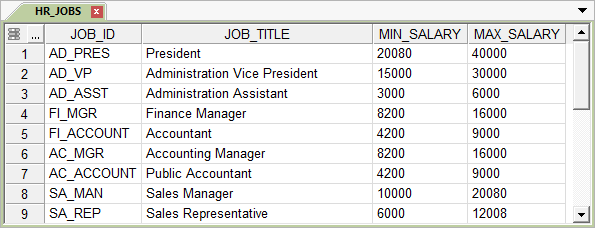
Data that is stored in an Offline document is a copy of the data read from a data file or server. The data file or server is not updated as you modify the Offline document.
If you want to update the data file or server with changes that you made to the Offline document, you can use the
 Write button in the Data tab.
To display the data link, click the Modify button in the Link pane of the Data tab.
You can set size and text formatting options. To display the Format Grid dialog box click Format in the OL tab.
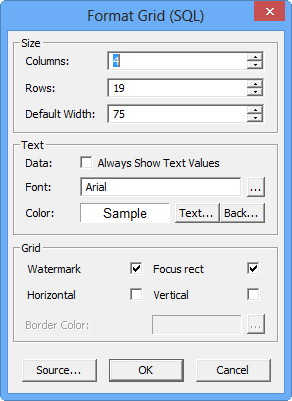
Formatting options apply to the entire grid (you cannot set format options for individual cells).
The Always Show Text Values option disables checkboxes, calendar controls, and numeric conversions. This option is useful to disable formatting and display the exact value read from the data file or server (for example: to display a 0 or 1 instead of a check-box).
The Source button sets the data connector. A data connector can be SQL, TEXT, or No Connector. This is an advanced feature that allows you to change connectors (for example: from a non-connected Offline document to one that links to a table in a data file or server).
To begin editing a cell, double click the cell which activates cell edit mode. Press Enter to save and continue to edit the next cell (or Esc to cancel). Ribbon buttons can be disabled while a cell is in edit mode.
If you type text on a selected cell the contents of the cell is replaced.
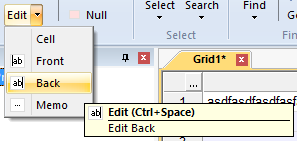
Additional start-edit options are available in the Edit button in the Edit tab (more importantly, the Edit button displays Keyboard shortcuts).
If you press Delete in a text cell is left blank (empty string). You can also set a cell to default (nothing) and null.
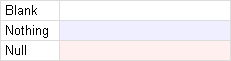
Most data files and servers distinguish between NULL and blank text (or a numeric zero). A default value (blue color) is meaningful to the Offline document and specifies that nothing is written for that cell value if you Write to the data file or server.
If Always Show Text Values is selected in the Format Grid dialog box, (Nothing) or (Null) displays instead of color.
 When you append a row in an Offline document, the cells are added with default (nothing) values.
If you create SQL Script for the new row, no values are provided with the INSERT.
For example, DEFAULT VALUES or VALUES (DEFAULT) is specified in the SQL Script. If you Write data directly, the default value is replaced (for example: with a NULL or an assigned IDENTITY value) with the value that is assigned by the data file or server.
When you append a row in an Offline document, the cells are added with default (nothing) values.
If you create SQL Script for the new row, no values are provided with the INSERT.
For example, DEFAULT VALUES or VALUES (DEFAULT) is specified in the SQL Script. If you Write data directly, the default value is replaced (for example: with a NULL or an assigned IDENTITY value) with the value that is assigned by the data file or server.
Most edits that are made to grid cells can be undone. Commands that affect the grid as a whole, or through a formula or macro, are generally not undoable. In situations where you edit many cells at once (for example, pasting data into an entire column), you may wish to clear Undo in the Edit tab.
The Offline document supports multiple cell selection. You can press and hold the Shift key in combination with a mouse click to extend the selection. Press and hold the Ctrl key to toggle cell selection. The
In the Edit tab, the select buttons support advanced selection features such as invert and select by value.
You can sort, group, and filter values in an Offline document. You can also select columns to copy to a new Offline document.
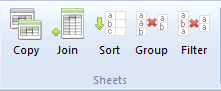
If you sort and then group a column, you can get a list of unique values.
You can set a numeric type (for example: R8 - Double-precision floating-point) to sort numerically.
If a group and filter command clears a row from the grid, you can you can specify to cut the value to the clipboard (copy the values removed during a Reduce).
The Join command allows you to perform UPDATE and APPEND operations in-memory between Offline documents.
You can open Interscape Data Flask Files *.DFG files. You can also rename a DFG to n OL file.
